Scan
Customers scan the QR code displayed at a local print shop.
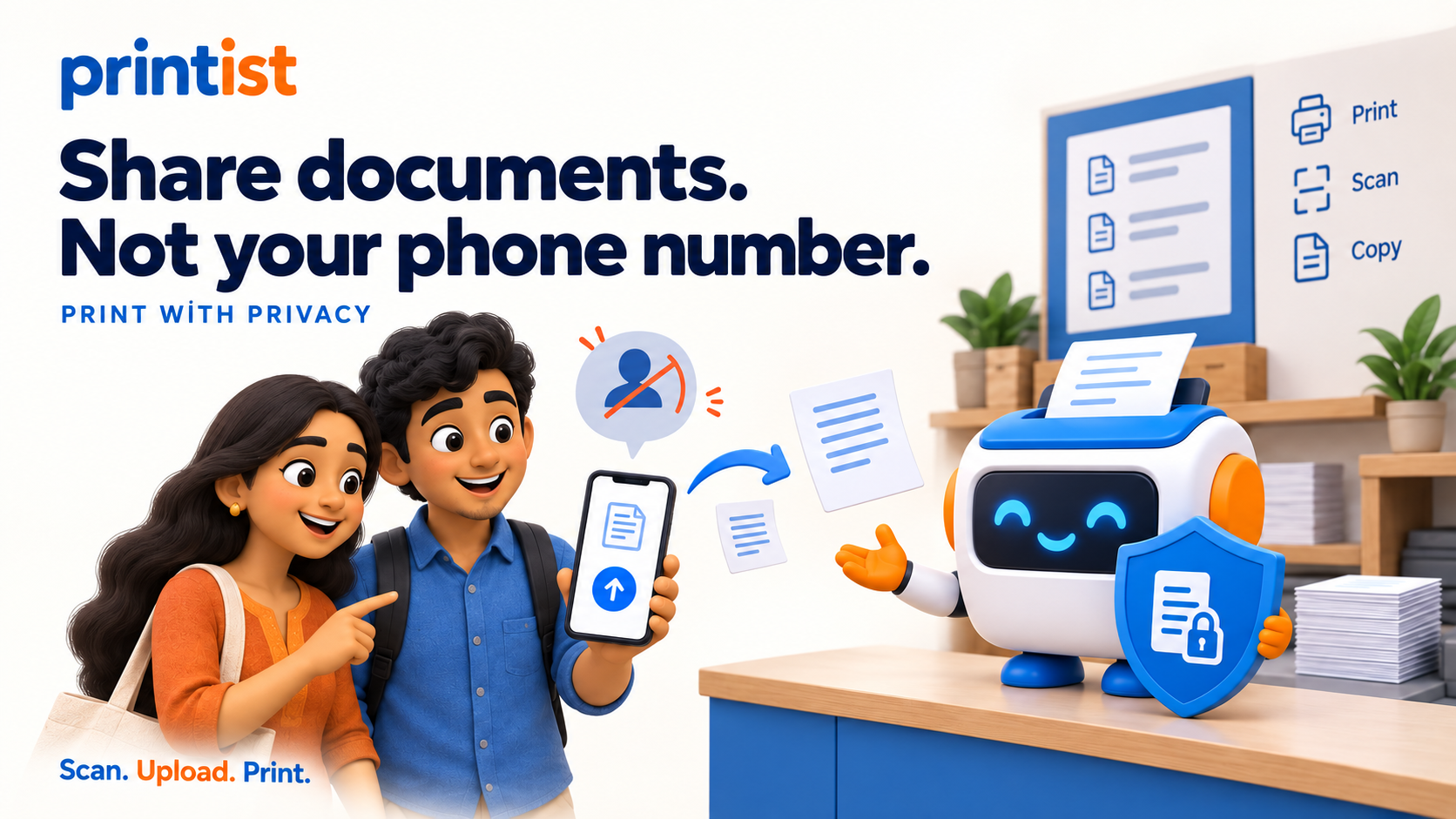
Customers scan the shop QR and upload files without ever exchanging a phone number.
Printist connects customer uploads, shop owners and desktop printers in one delightfully simple flow.
From scanning the shop QR to collecting the prints — six simple steps, with no app, no account and no phone number shared.
Customers scan the QR code displayed at a local print shop.
The shop's upload page opens directly in the phone's browser — no app installation or account required.
Select and upload documents directly from their phone's browser — no app installation or account required.
Sent files arrive on the shop owner's dashboard as a notification bubble and are also sent via WhatsApp.
Shop staff receive the files, manage print jobs, and print the documents.
Customers collect their prints from the shop.
Everything a shop owner needs to do—register, onboard the shop, get the QR, install the desktop app, set it up on the shop machine, configure a printer and start operating. Hover any step to see the details.
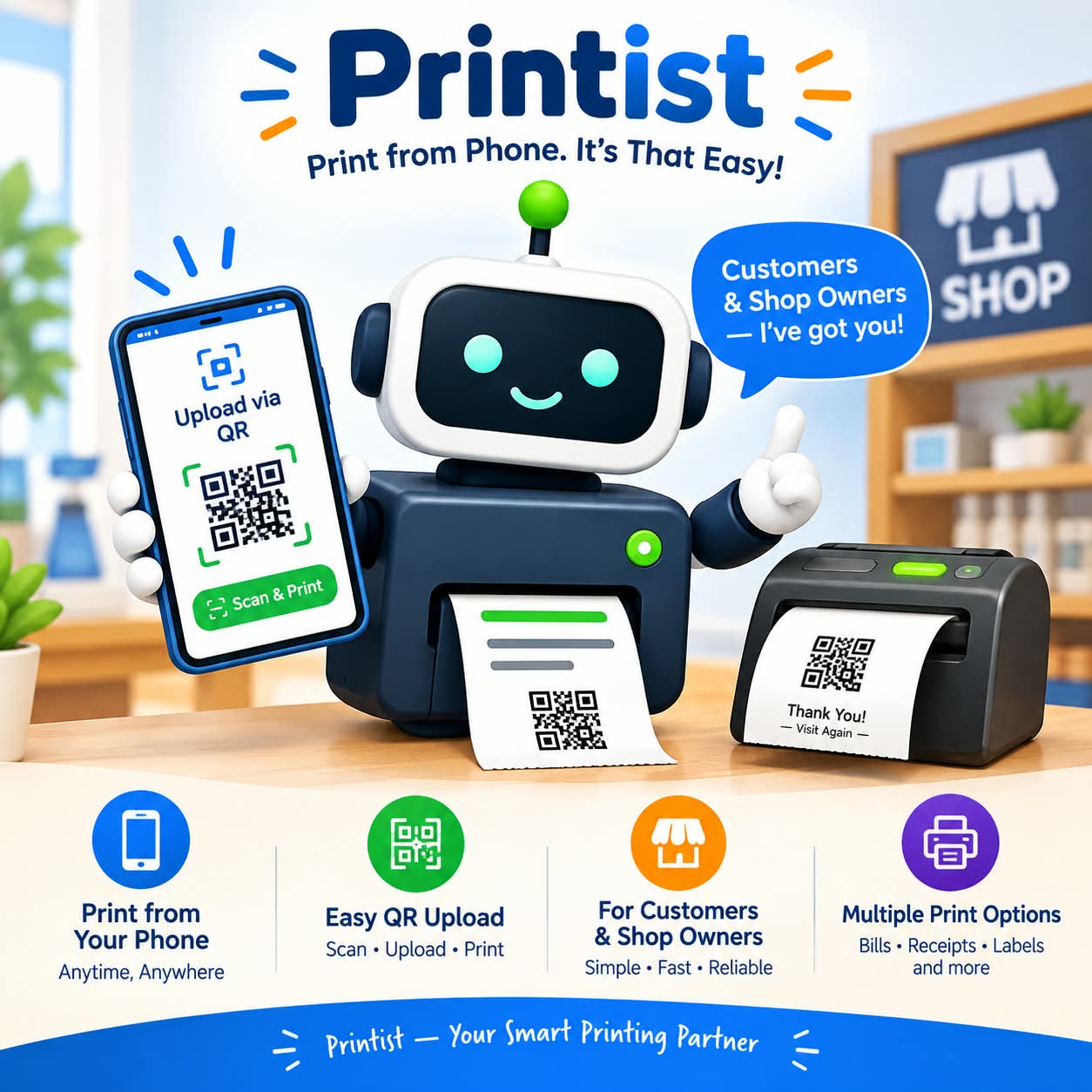
WhatsApp, QR uploads and drag & drop all arrive in a single organised print queue.
Create your free Printist account with your name, email or mobile and a password. No card required to start.
Add your shop name, address, owner contact, WhatsApp number and file-retention window to provision the shop.
Your shop is issued a permanent public code and upload page. Download the QR and display it at your counter.
Install the desktop app for Windows 10/11 (64-bit) on the shop computer connected to your printer.
Open Devices in your portal, generate a one-time pairing code and enter it in the app to connect the machine.
Pick your default printer right in the app dashboard. Printist prints A4, fit-to-page, with safe defaults.
Customers scan and upload, and every job arrives instantly. Approve each with PRINT NOW, LATER or REJECT.
Create your account to provision the shop and get your QR, then install the desktop app on the shop computer. Your 30-day free trial starts when the first device connects.
No app, no account and no waiting. Here's how anyone can print at a Printist-enabled shop in seconds. Hover any step to see the details.
Look for the Printist QR stand at the counter of a participating print shop near you.
Open your camera and scan. The upload page opens in your browser—no app and no account needed.
Pick a PDF or a photo from your phone. Any supported file works.
Upload and wait for the confirmation with your job reference.
Your file drops into the shop's live queue and the owner prints it on the spot.
Pick up your copies and pay the shop directly. Your phone number stays private.
Find the WhatsApp number on the counter stand and open the chat.
Send a PDF, JPG or PNG file directly from your phone.
Your file lands in the shop's live queue and is printed.
Pick up your prints at the counter and pay directly.
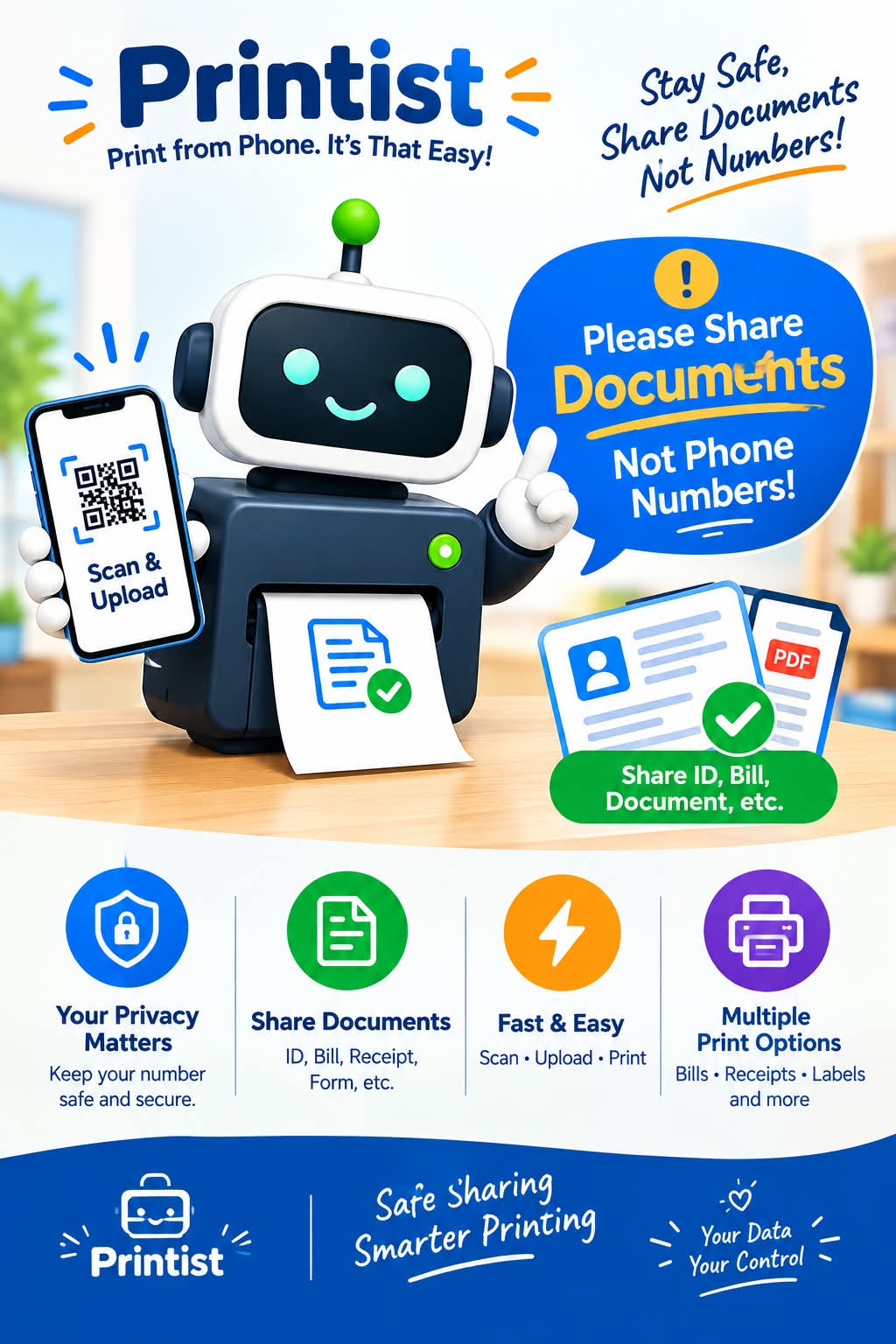
Customers just scan, upload and print. No app, no signup, and their number stays private.
Next time you visit a participating print shop, look for the Printist QR at the counter. Scan, upload and collect your prints—without sharing your phone number.
Real shop stories, one simple promise—any file, any time, printed right on paper.
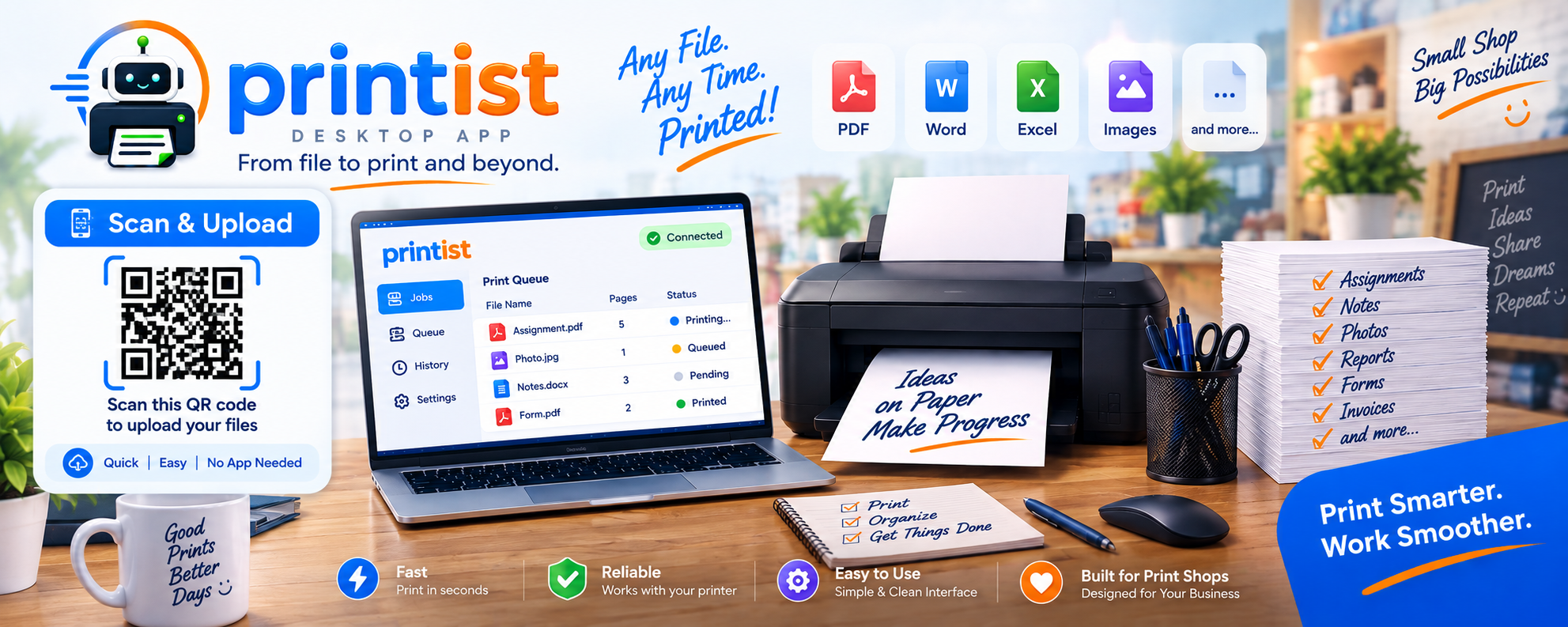
PDF, Word, Excel, images and more—printed fast, reliably, on your own printer.
Download and print your shop's QR code as a counter stand, poster or business-card-size card. Customers spot it, scan it and send their documents in seconds.
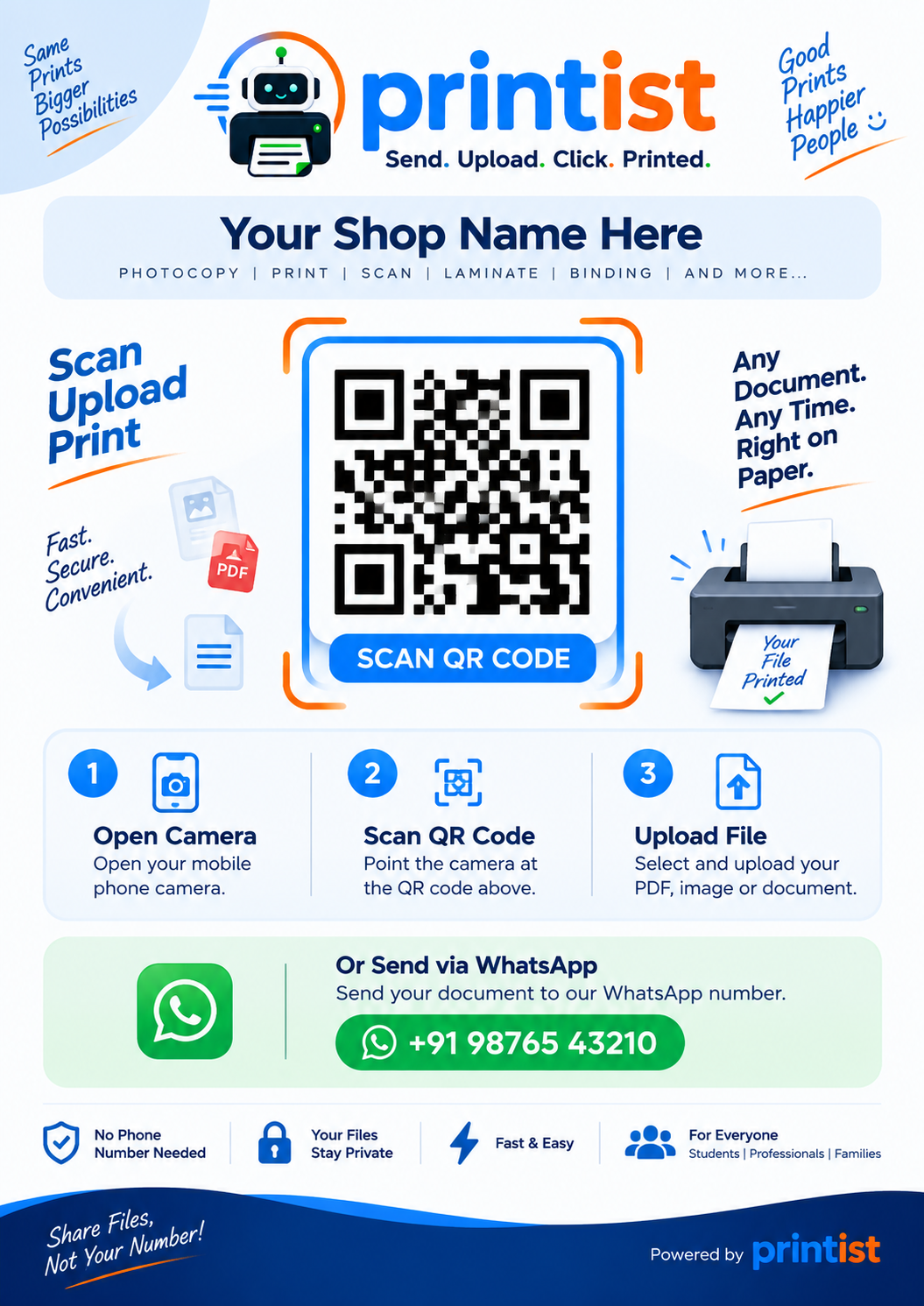
Printist turns a crowded inbox into a calm, trackable operation—with your shop identity at the centre.
Actionable desktop notifications for every document.
A unique upload point customers can scan in seconds.
See jobs, pages and busy hours at a glance.
Shop-isolated storage with controlled file access.
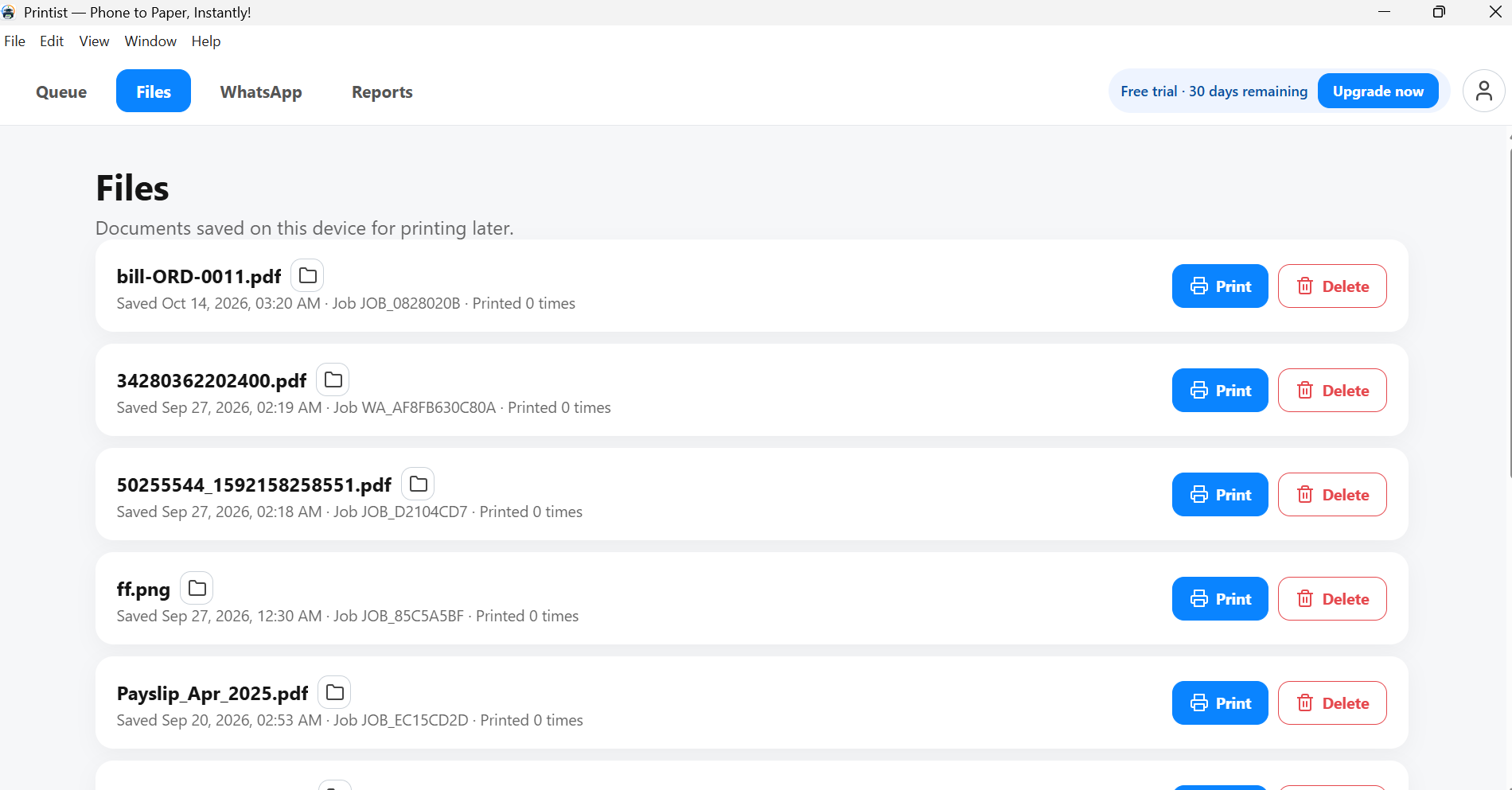
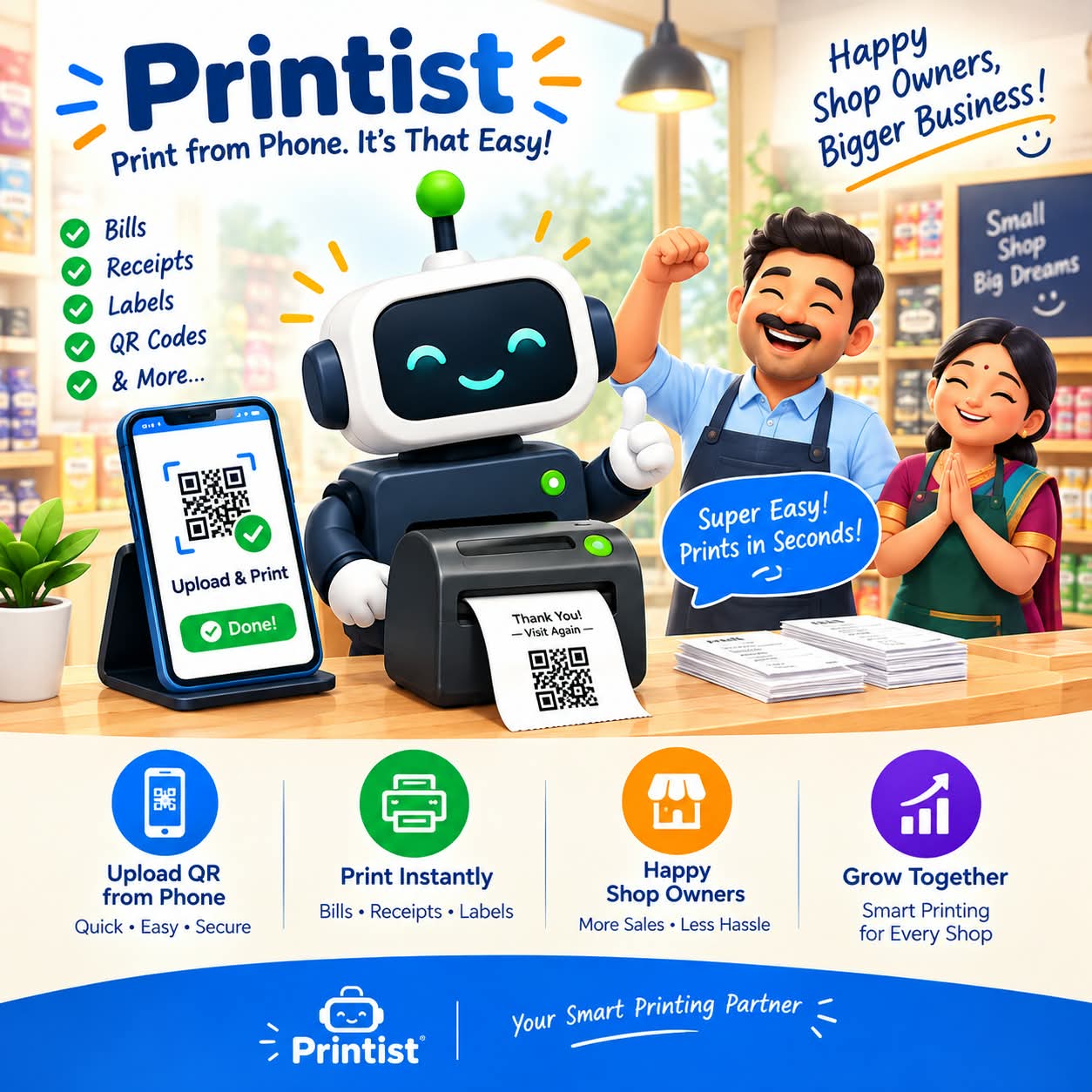
Rayagada Print Hub used to juggle WhatsApp forwards, USB drives and scribbled notes — losing nearly an hour a day just sorting files. With Printist, every customer upload lands in one organised queue, the desktop app alerts the owner the moment a job arrives, and PRINT NOW sends it to the printer in a single click.
“Customers scan the QR, upload, and their prints are ready before they reach the counter. Happy customers, no more lost files.”
— Owner, Rayagada Print Hub
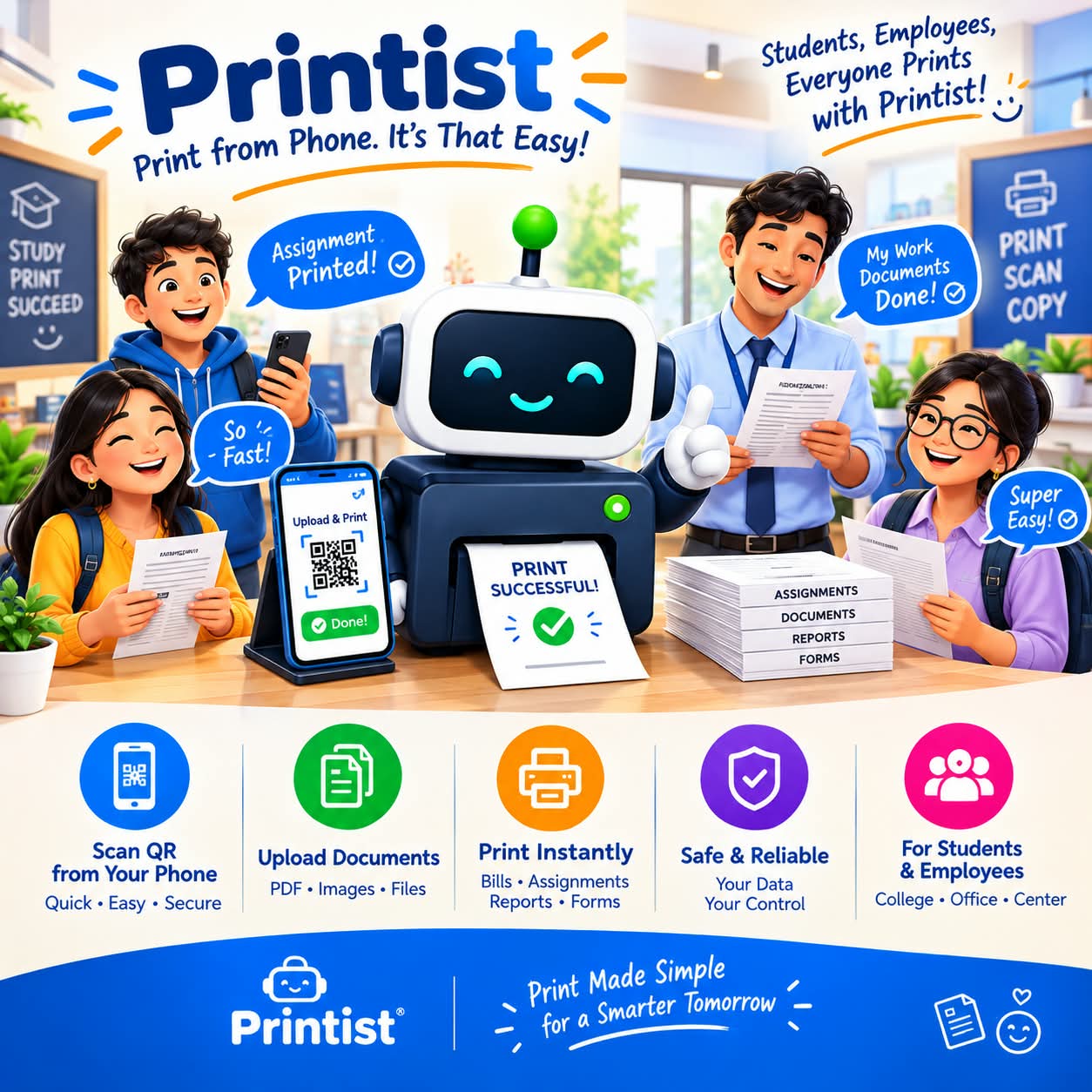
Around exam season, students used to queue at the counter with pendrives or forward files on WhatsApp — handing out personal numbers just to get a few pages printed. With Printist, they scan the shop's QR, pick a PDF from their phone, and the job lands straight in the shop's queue. Prints are ready before they reach the counter. No app, no signup, no number shared.
“I scan, upload my notes, and pick them up on my way to class. I never have to share my number.”
— Student, Rourkela
Try every Printist feature free for 30 days. When you are ready, keep your shop running for a full year with one simple annual plan.
Try the full Printist experience at your counter — no card and no commitment.
Everything your shop needs to receive, manage and print customer documents all year.
Real people, real print jobs — here is what they say about Printist.
Printist cut our counter handling in half. Files arrive organised, and we just hit print. It feels like a superpower for a small shop.

I scan the QR, upload my documents, and they're ready when I reach the shop. No pendrives, no waiting in line for a copy.

Students send me print jobs straight from their phones. The live queue keeps everything in order, even during exam season.

Setup took minutes. Now every customer upload lands in one tidy queue, and my staff spends less time typing and more time printing.

Quick answers about how Printist works for print shops and their customers.
Printist helps print and photocopy shops receive customer documents through a shop-specific QR upload page or a local WhatsApp Web session, then print them from a Windows desktop app.
Customers scan the shop's QR code, open the upload page, choose a PDF, JPG or PNG file, and send it. The document lands in the shop's live print queue and the owner prints it with one click.
No. With QR upload, customers send documents without exchanging phone numbers.
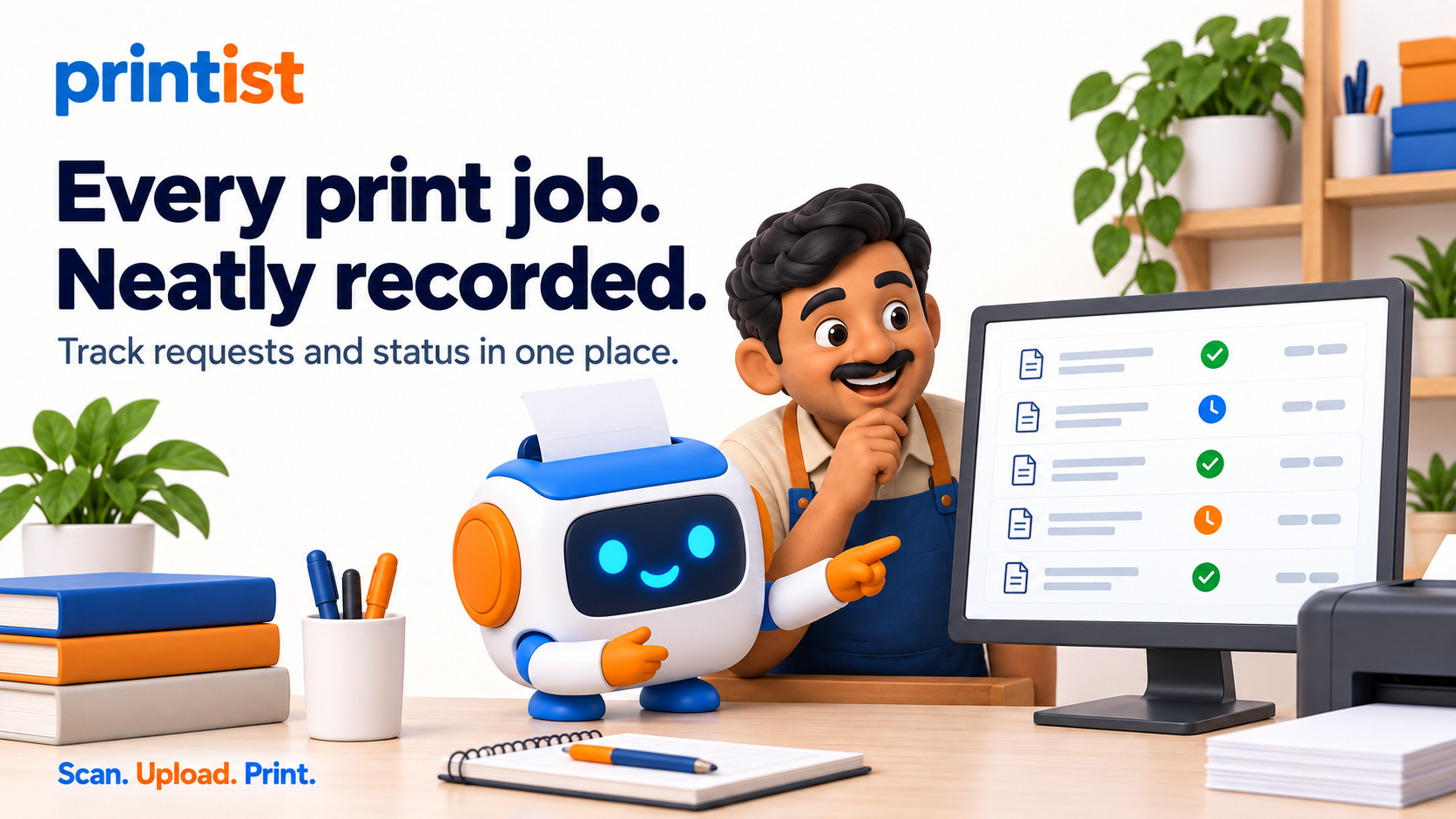
Uploads appear in the shop's live print queue on the Printist desktop app, which alerts the owner and lets them print, defer or reject each job.
Printist prints through the Windows default or a configured A4 printer, so it works with most printers already in the shop.
Whether you run a print shop or just need something printed, tell us what you need and our team will get back to you.