Scan. Upload. Print. That's it.
No app, no account and no waiting. Here's how anyone can print at a Printist-enabled shop in seconds. Hover any step to see the details.
Send via QR code
- Walk into a Printist shop01
Look for the Printist QR stand at the counter of a participating print shop near you.
- Scan the QR with your phone02
Open your camera and scan. The upload page opens in your browser—no app and no account needed.
- Choose your document03
Pick a PDF or a photo from your phone. Any supported file works.
- Send it to the counter04
Upload and wait for the confirmation with your job reference.
- The shop prints it05
Your file drops into the shop's live queue and the owner prints it on the spot.
- Collect your prints & pay06
Pick up your copies and pay the shop directly. Your phone number stays private.
Send via WhatsApp
- Open the shop's WhatsApp01
Find the WhatsApp number on the counter stand and open the chat.
- Send the document02
Send a PDF, JPG or PNG file directly from your phone.
- The shop prints it03
Your file lands in the shop's live queue and is printed.
- Collect & pay04
Pick up your prints at the counter and pay directly.
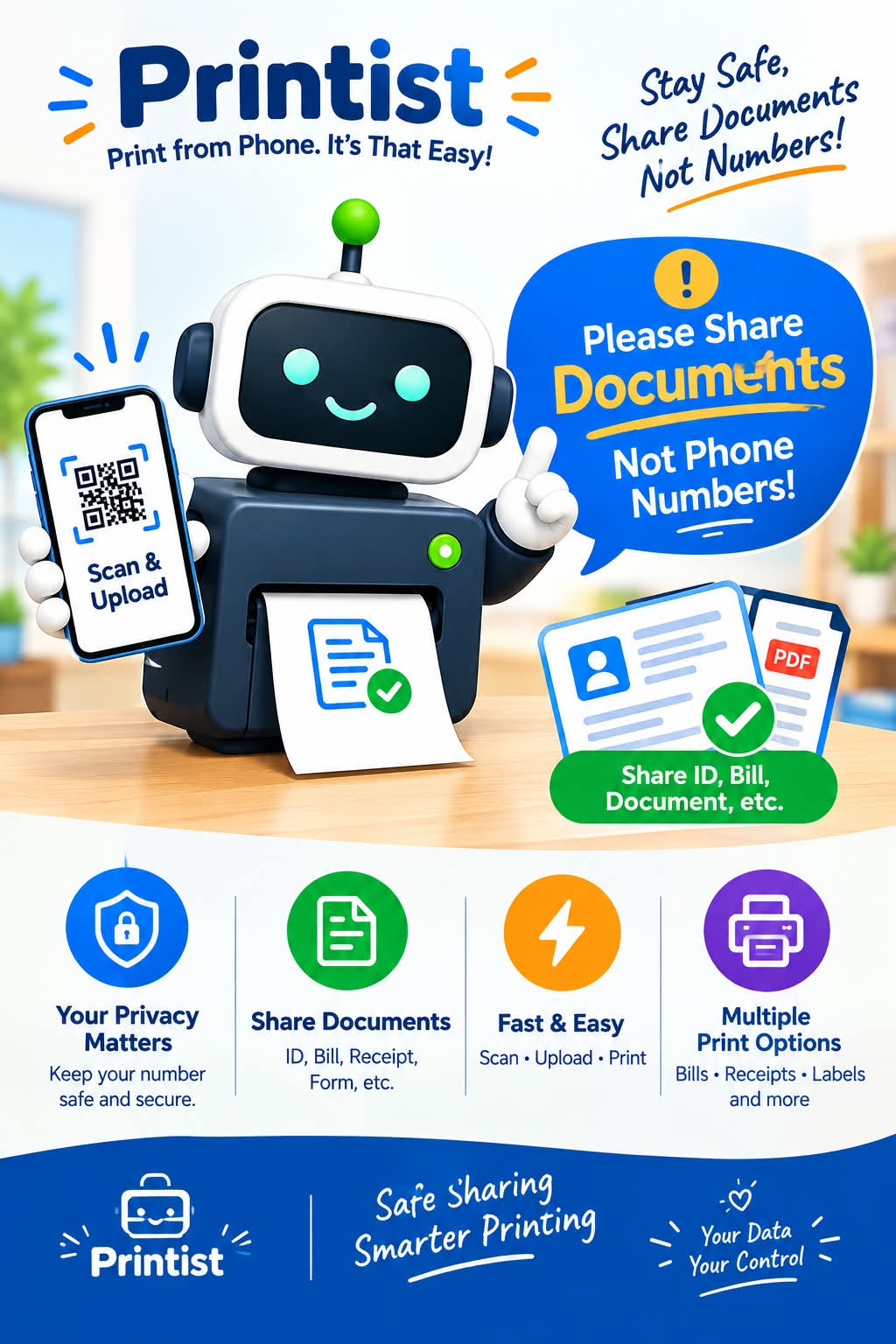
Customers just scan, upload and print. No app, no signup, and their number stays private.
Next time you visit a participating print shop, look for the Printist QR at the counter. Scan, upload and collect your prints—without sharing your phone number.
Scan the QR. Choose a file. Check the preview.
The shop QR opens the upload page in your phone browser — no app and no account. Pick a PDF, Word file or photo, verify it in Preview, then upload it to the shop or send it on WhatsApp.
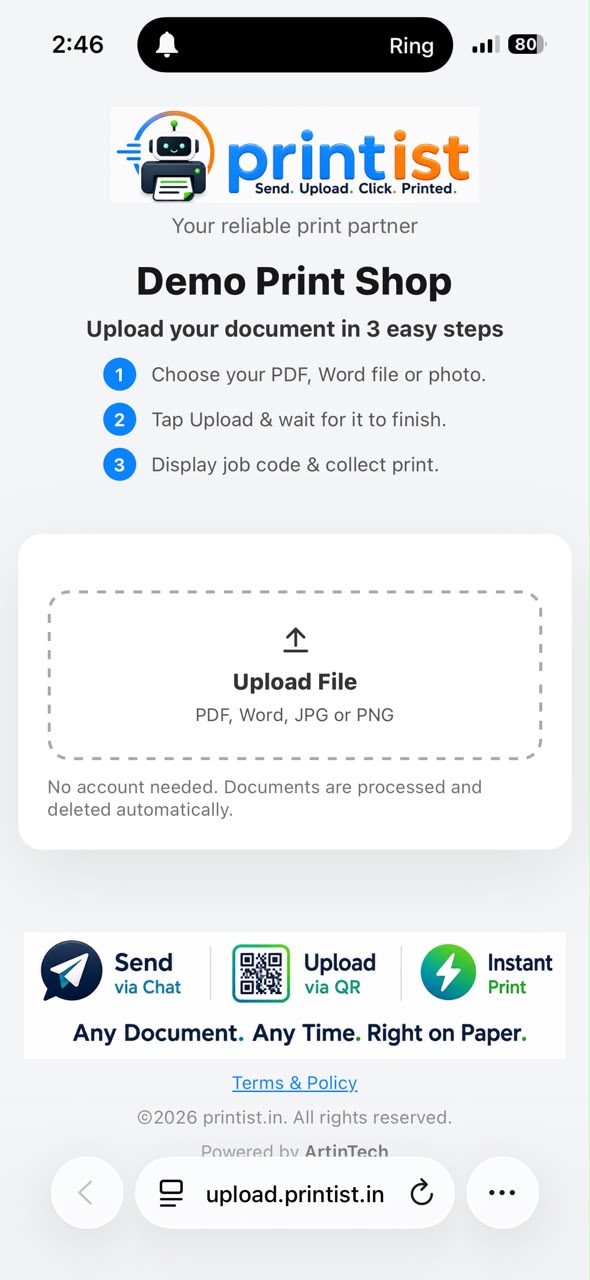
Scan the shop QR and tap Upload File. PDF, Word, JPG and PNG are supported.
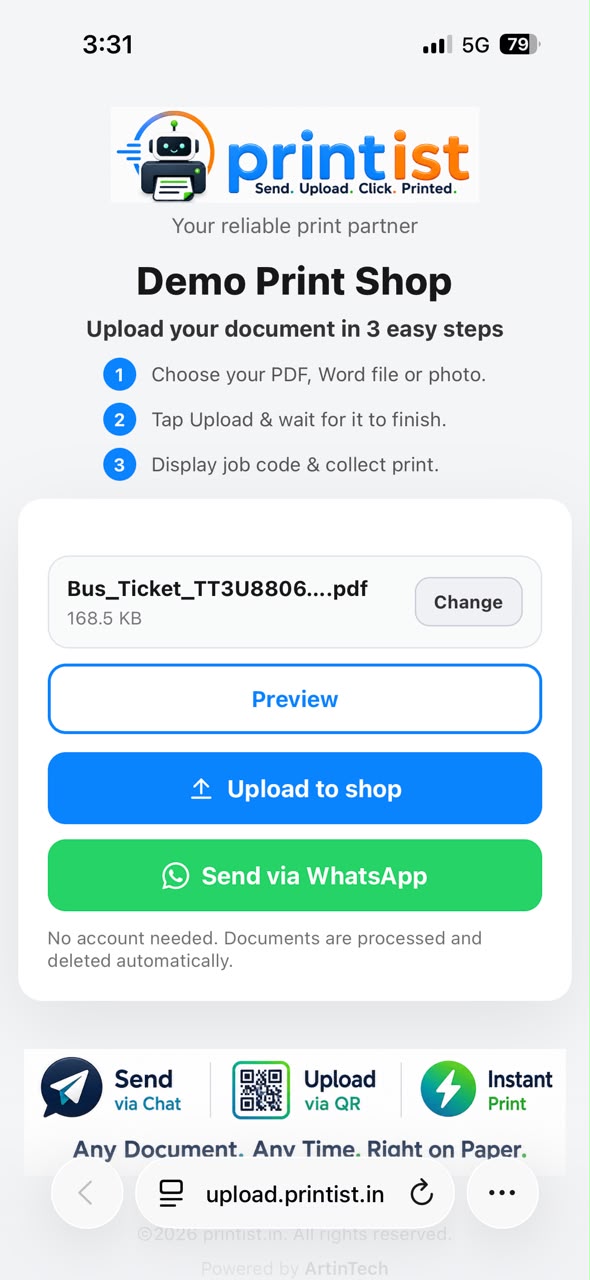
Check the file name and size, open Preview to verify the pages, then use Upload to shop or Send via WhatsApp.
- Scan the QR with any phone camera — no app needed
- Preview the document before you send it
- Upload to the shop queue or send via WhatsApp