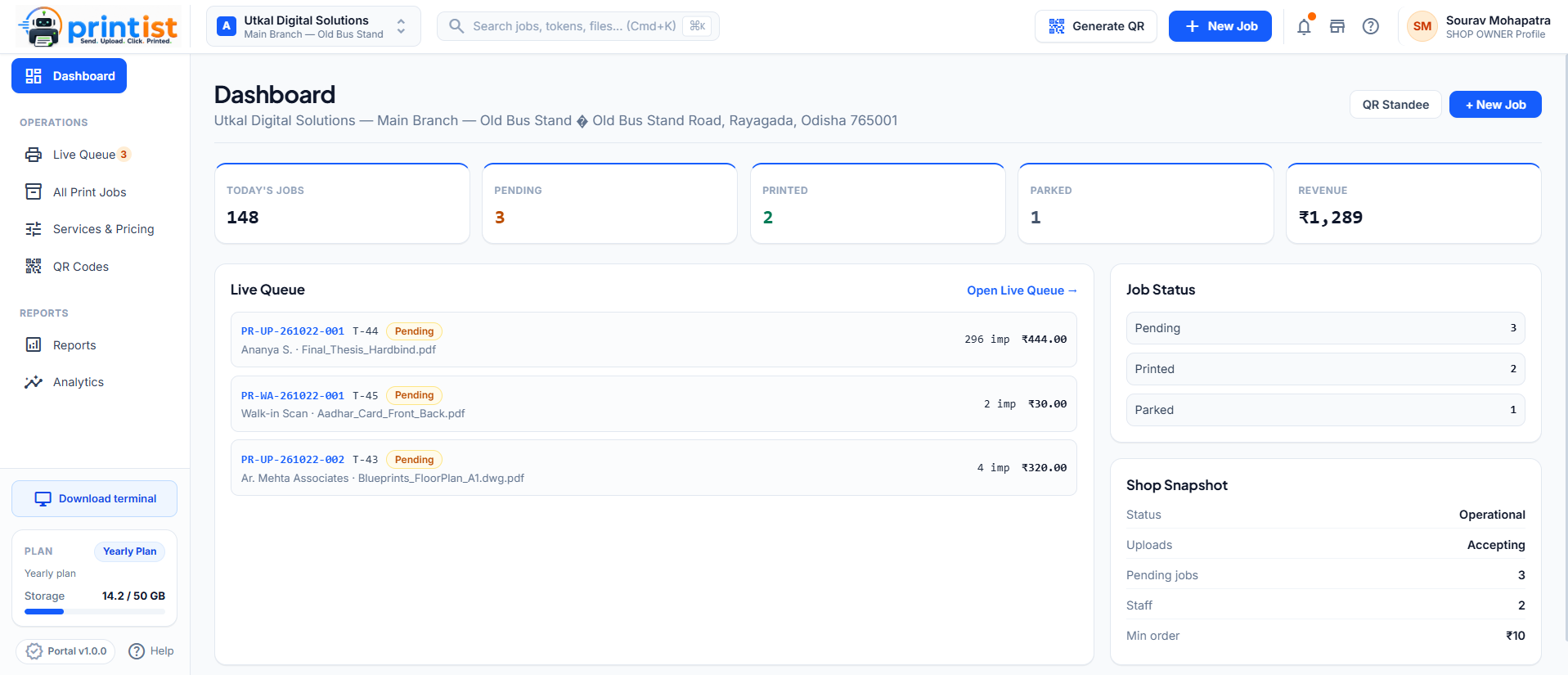
Portal for Shop Operations
Printist turns a crowded inbox into a calm, trackable operation—with your shop identity at the centre.
Actionable desktop notifications for every document.
A unique upload point customers can scan in seconds.
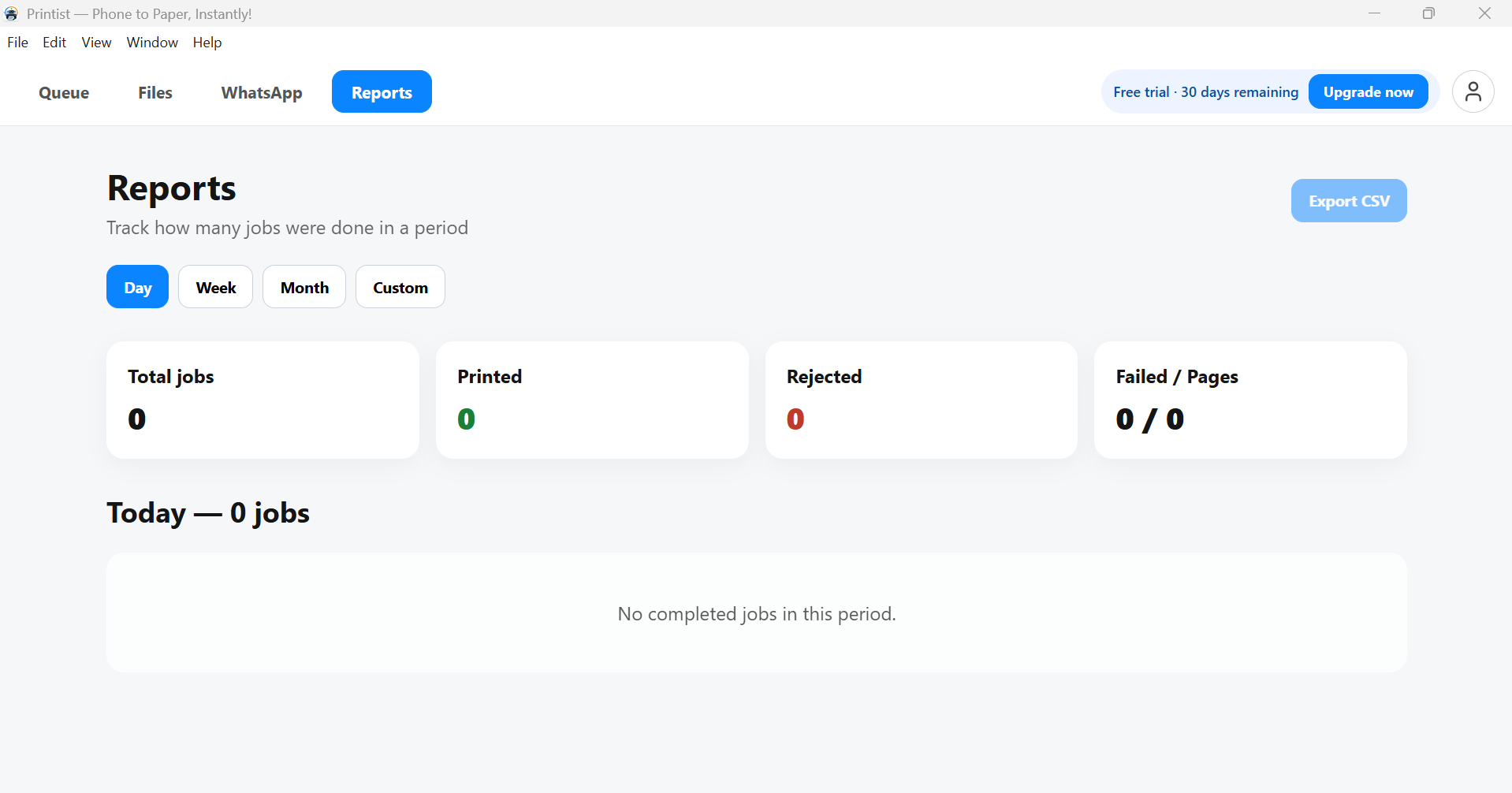
See jobs, pages and busy hours at a glance.
Shop-isolated storage with controlled file access.
Desktop app for Shop Operations
The Windows desktop app is where QR uploads, WhatsApp files and saved documents come together — with instant alerts, one-click printing and reports for your records.
See QR upload status, your printer, shop code and every pending request. PRINT NOW, LATER or REJECT each job as it arrives.
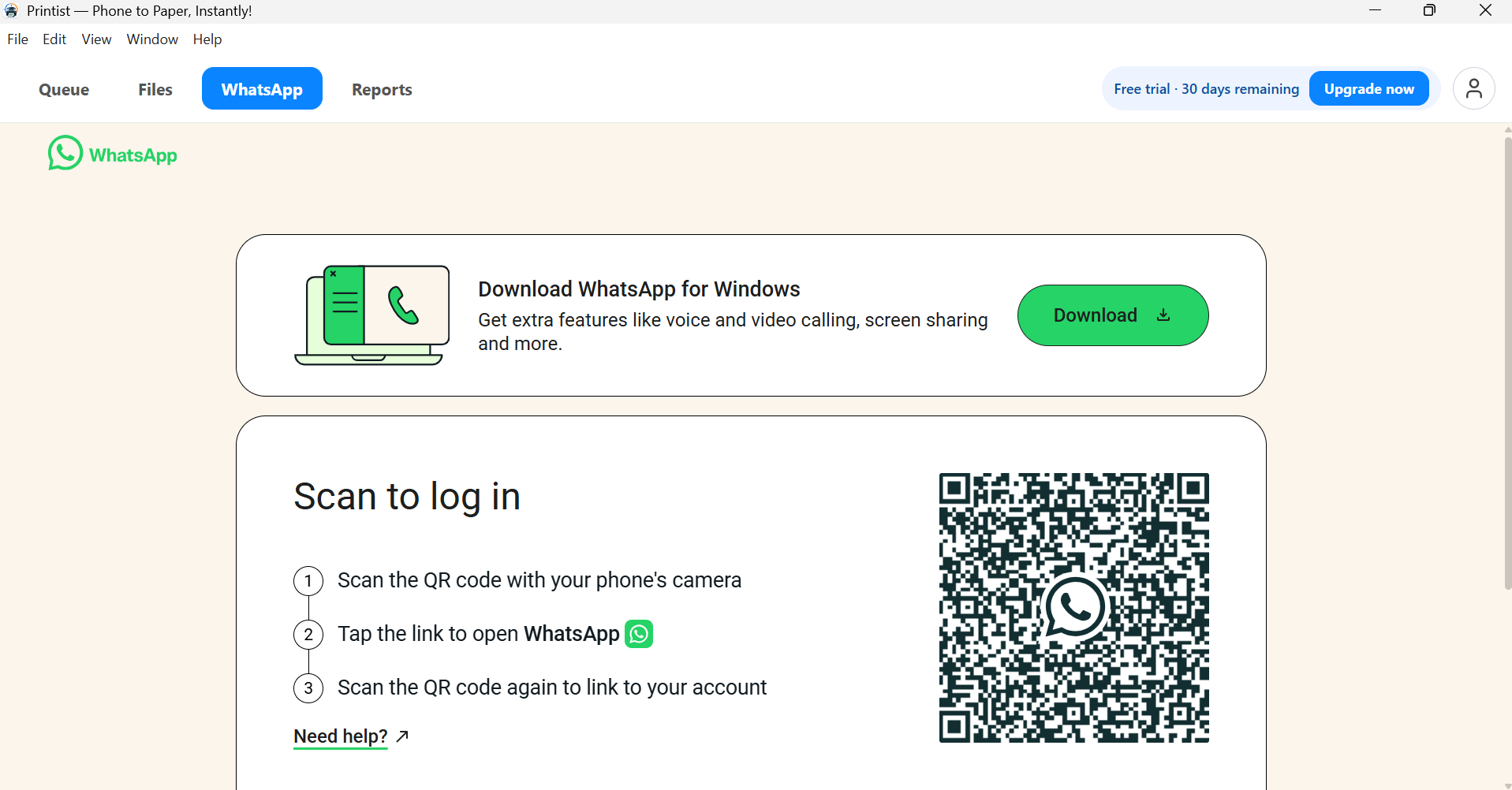
Link the shop's WhatsApp from the desktop app and receive customer documents alongside QR uploads — all in the same queue.
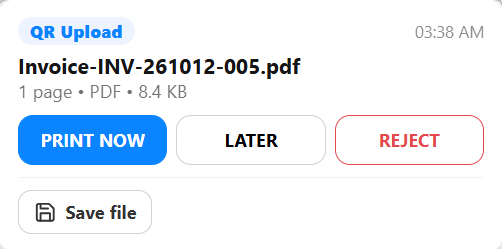
A desktop notification pops up the moment a file arrives. Print it instantly, keep it for later, reject it, or save it to the device.
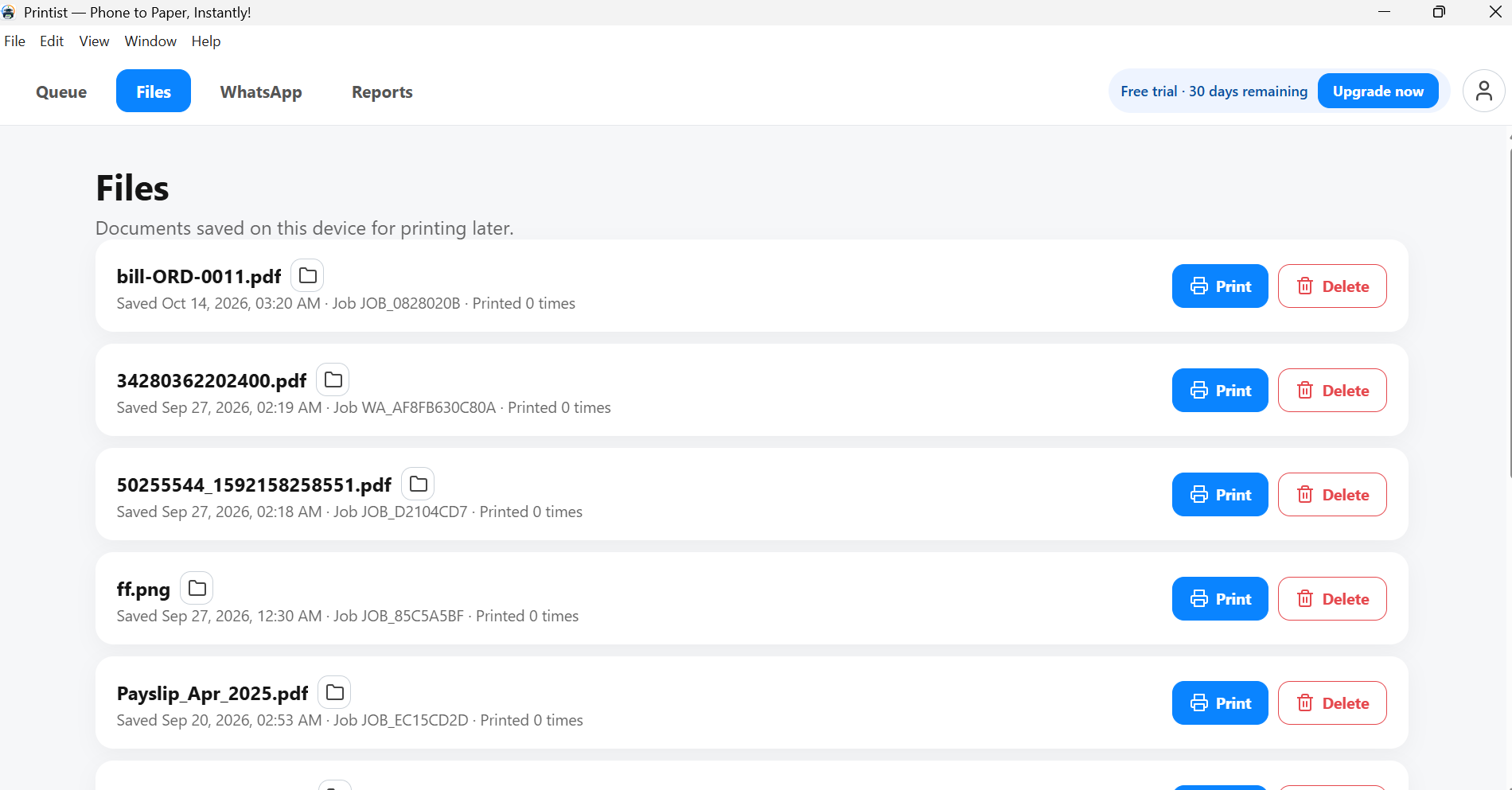
Files saved on the shop PC stay organised by job. Print again or delete old documents whenever you need.
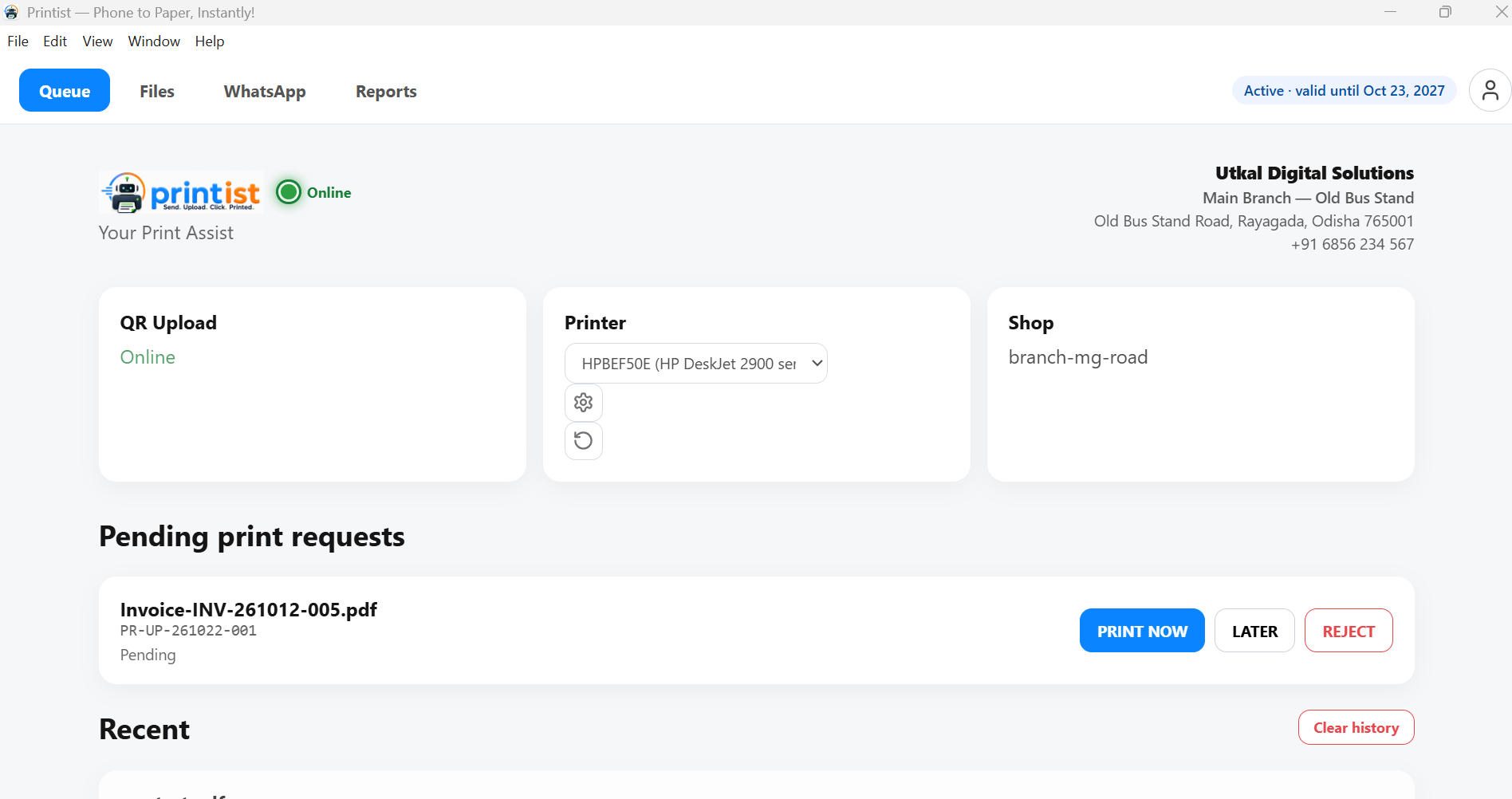
From sign-up to first print in minutes.
Everything a shop owner needs to do—register, onboard the shop, get the QR, install the desktop app, set it up on the shop machine, configure a printer and start operating. Hover any step to see the details.
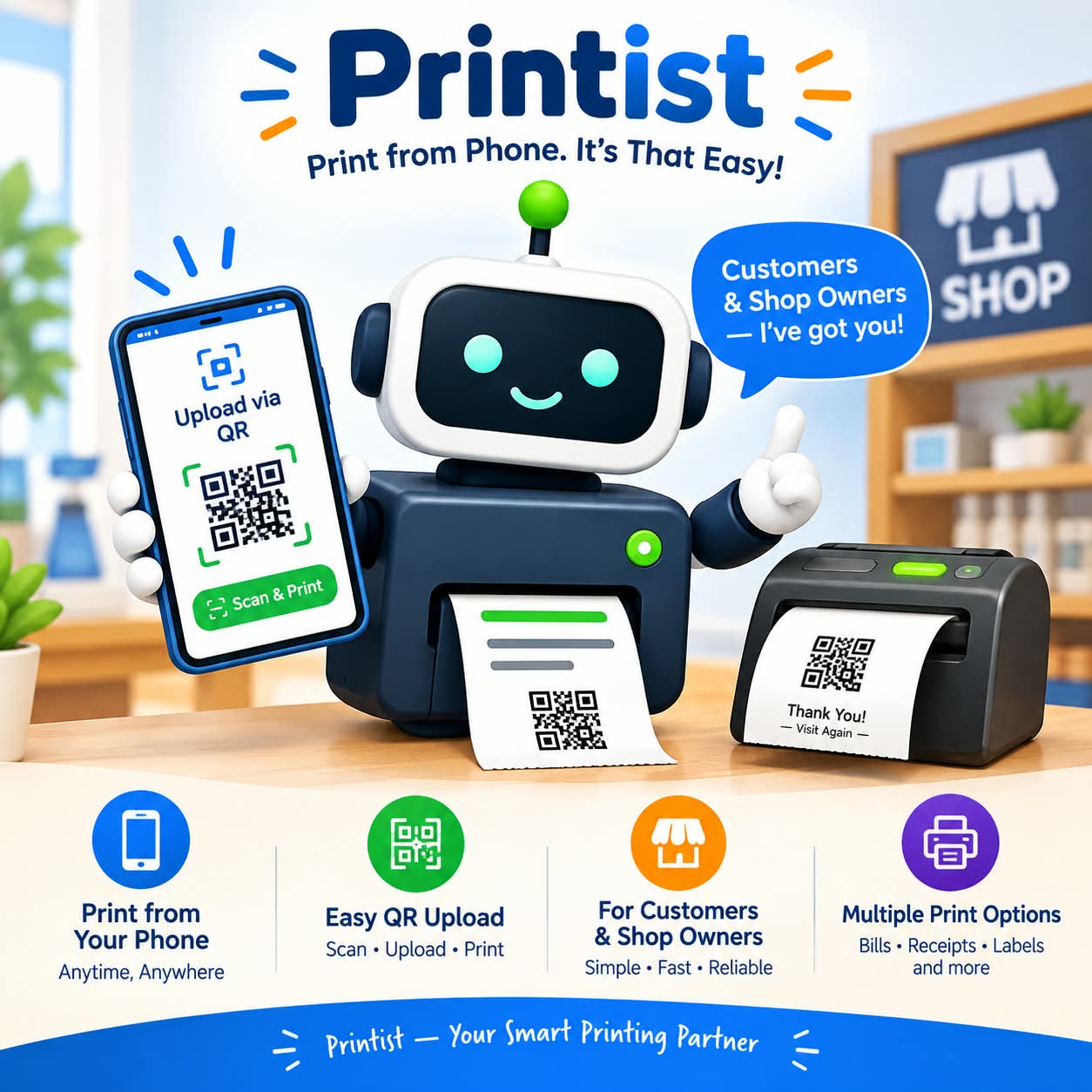
WhatsApp, QR uploads and drag & drop all arrive in a single organised print queue.
- Register your account01
Create your free Printist account with your name, email or mobile and a password. No card required to start.
- Onboard your shop02
Add your shop name, address, owner contact, WhatsApp number and file-retention window to provision the shop.
- Get your shop QR03
Your shop is issued a permanent public code and upload page. Download the QR and display it at your counter.
- Download Printist Desktop04
Install the desktop app for Windows 10/11 (64-bit) on the shop computer connected to your printer.
- Set up on the shop machine05
Open Devices in your portal, generate a one-time pairing code and enter it in the app to connect the machine.
- Configure your printer06
Pick your default printer right in the app dashboard. Printist prints A4, fit-to-page, with safe defaults.
- Start operating07
Customers scan and upload, and every job arrives instantly. Approve each with PRINT NOW, LATER or REJECT.
Create your account to provision the shop and get your QR, then install the desktop app on the shop computer. Your 30-day free trial starts when the first device connects.
Enrol once. Your counter QR is permanent.
When your shop is onboarded, Printist issues a permanent public code and upload page. Download the QR poster from your portal, print it, and place it at your counter — customers scan it and send documents without an app or an account.
- Issued automatically when your shop is onboarded
- Download the poster or counter stand from your portal
- One permanent QR per shop — reprint it any time
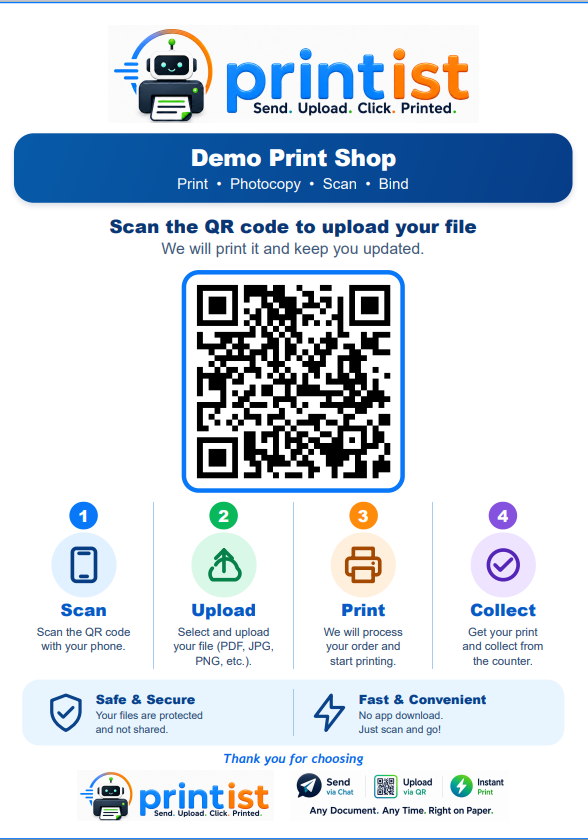
One window for every job at your counter.
The Windows desktop app is where QR uploads, WhatsApp files and saved documents come together — with instant alerts, one-click printing and reports for your records.
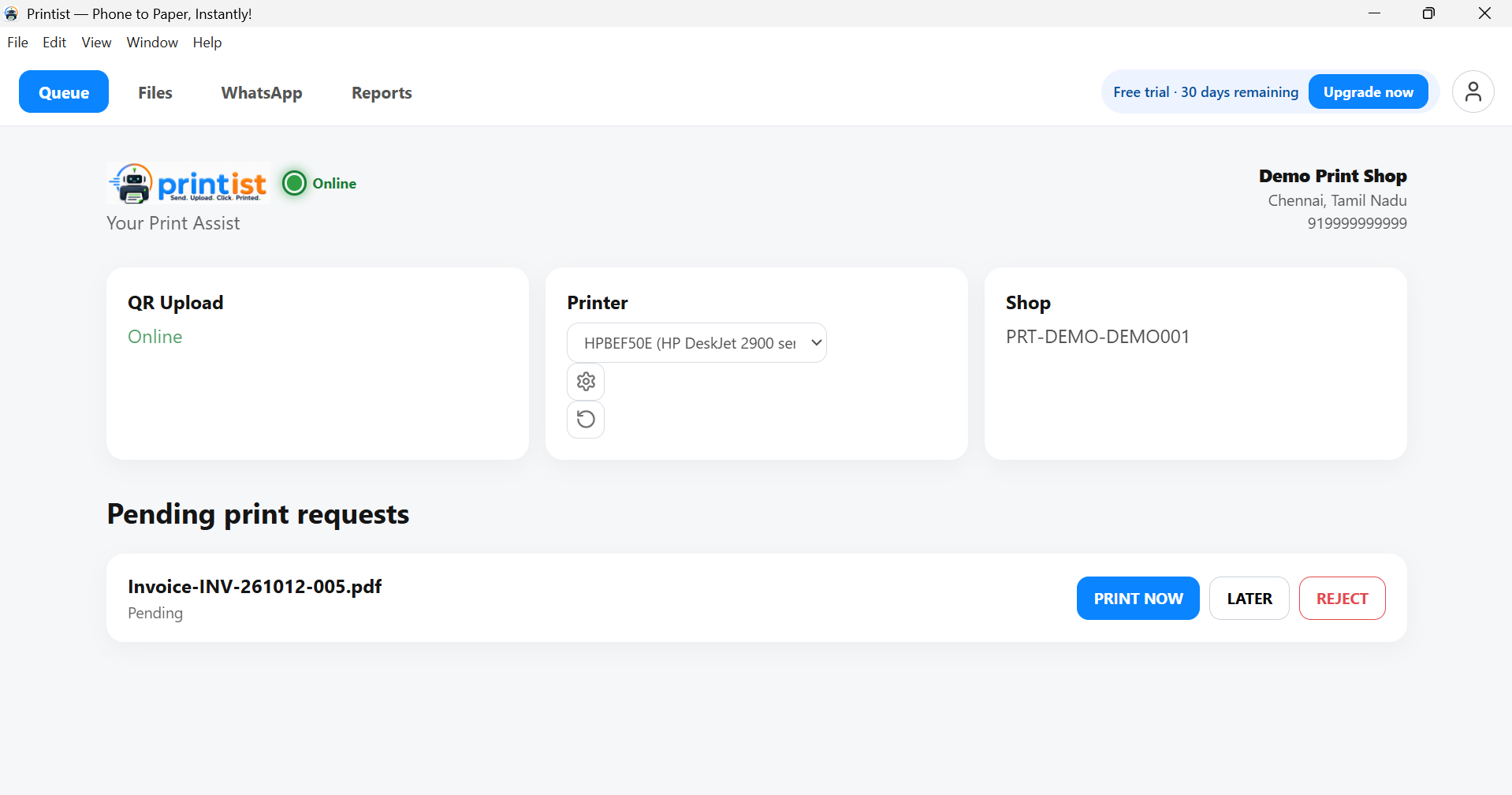
See QR upload status, your printer, shop code and every pending request. PRINT NOW, LATER or REJECT each job as it arrives.